


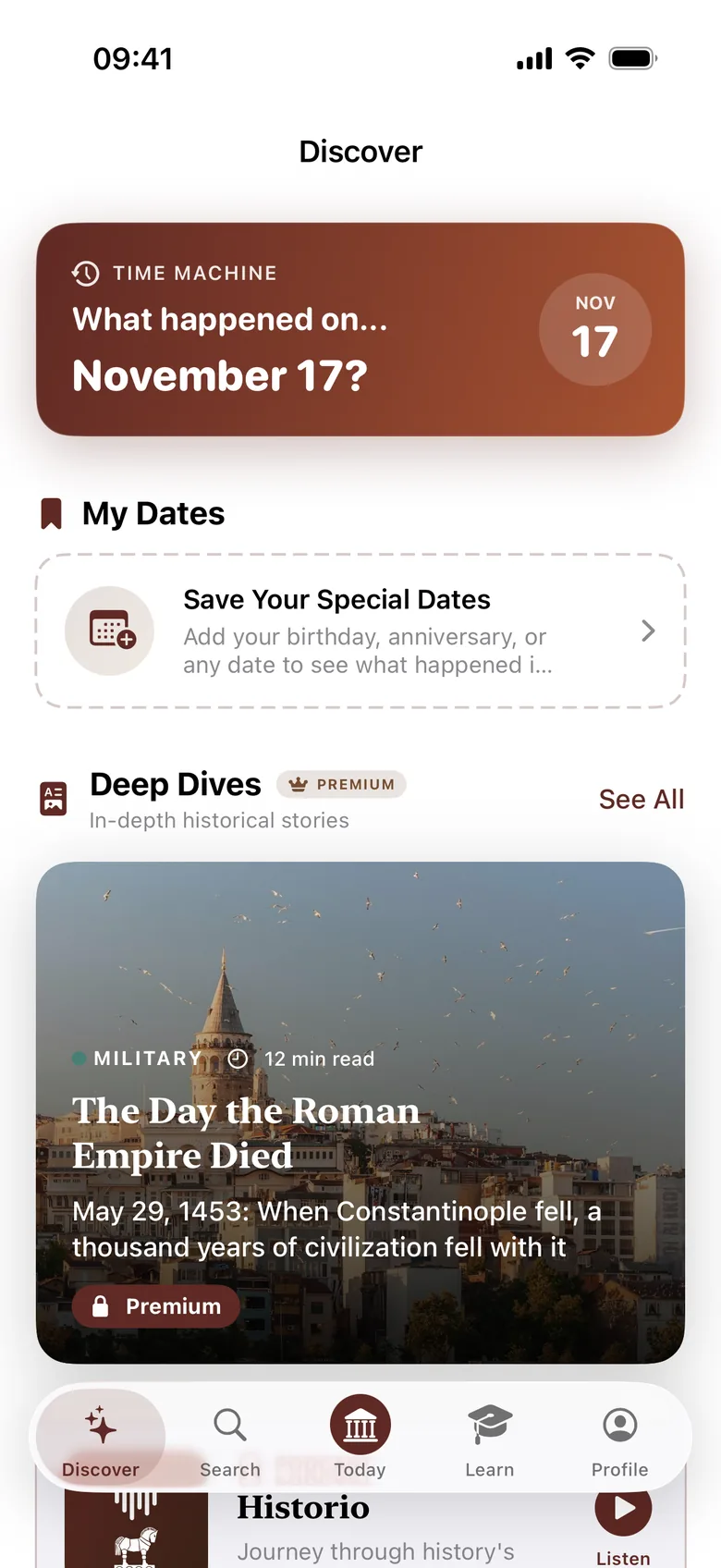
Discover — Time Machine, your dates, Deep Dives 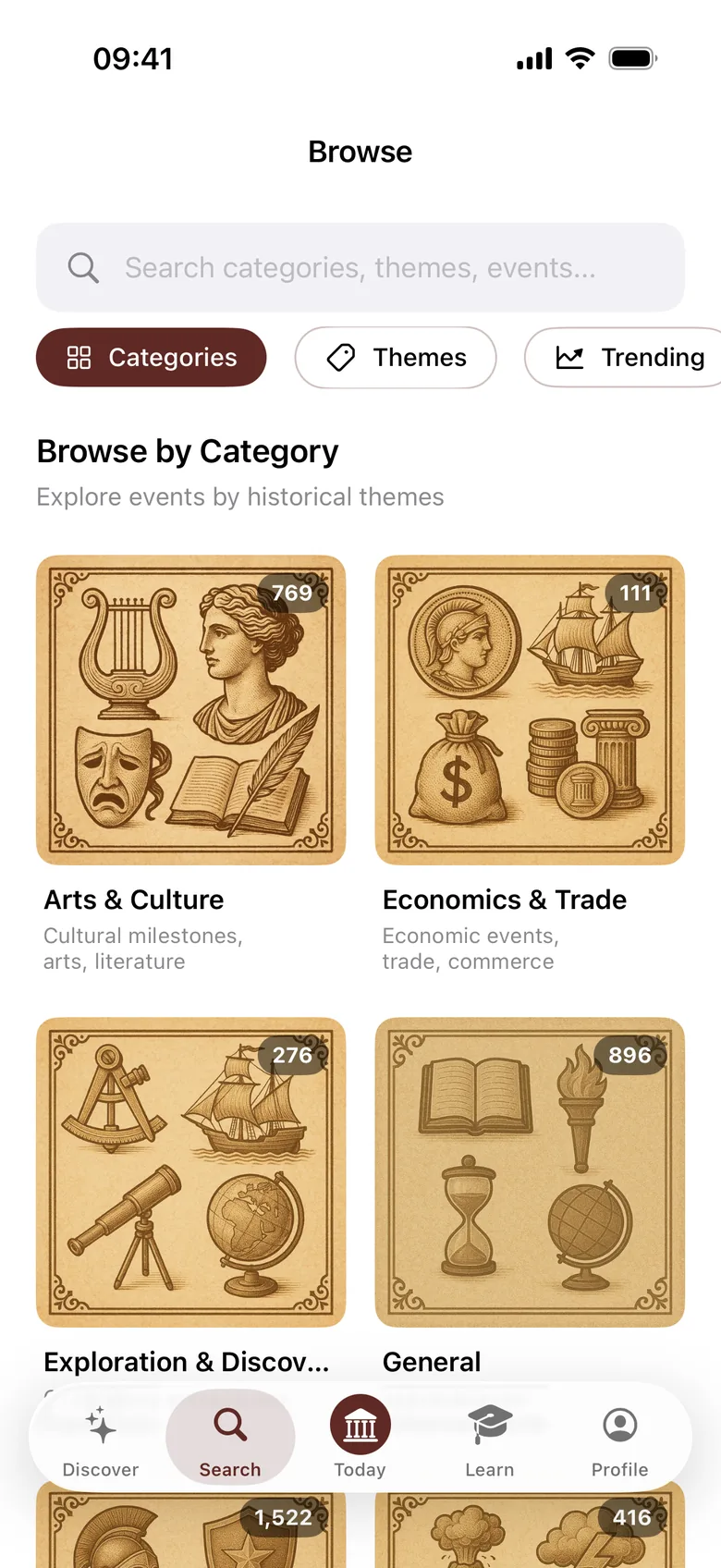
Search — categories, themes, trending 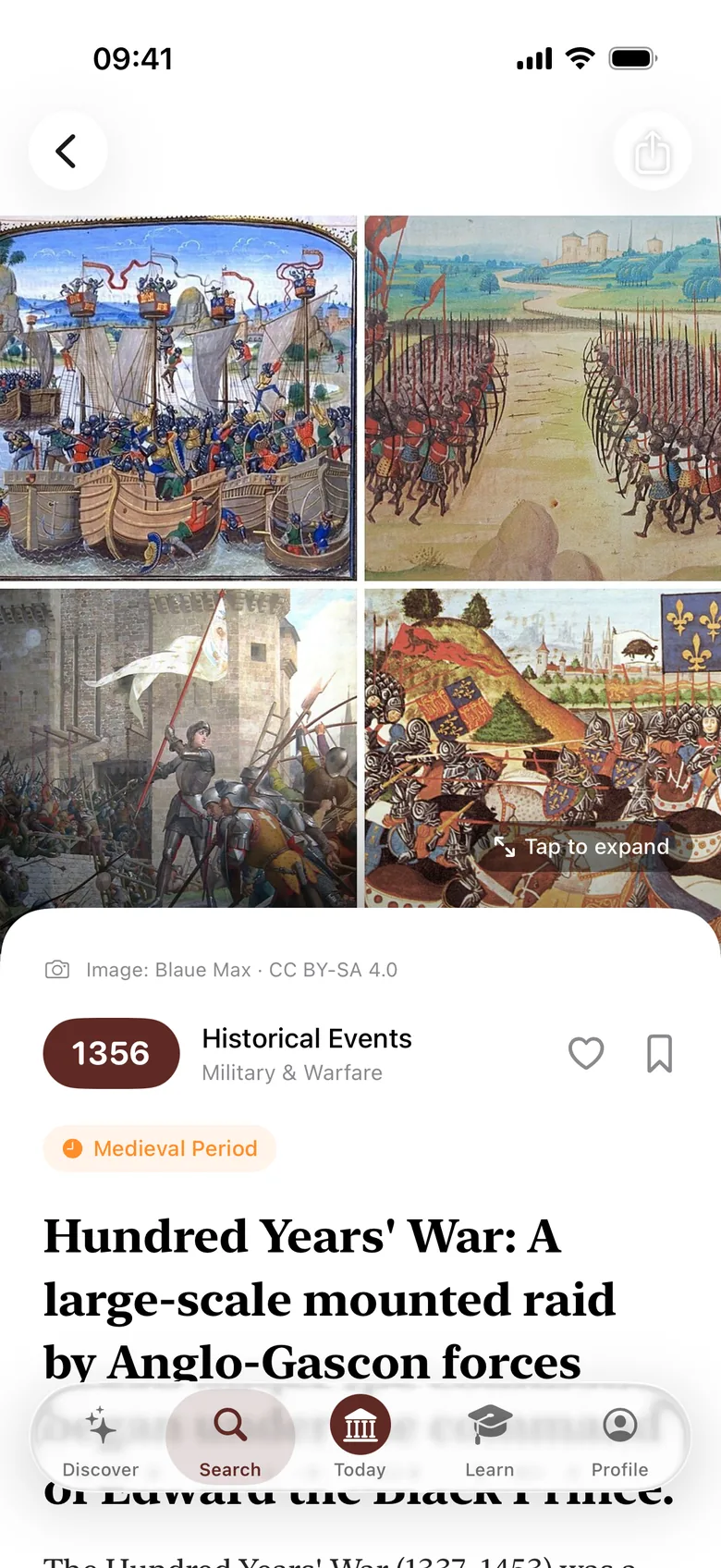
An event — the story behind a date 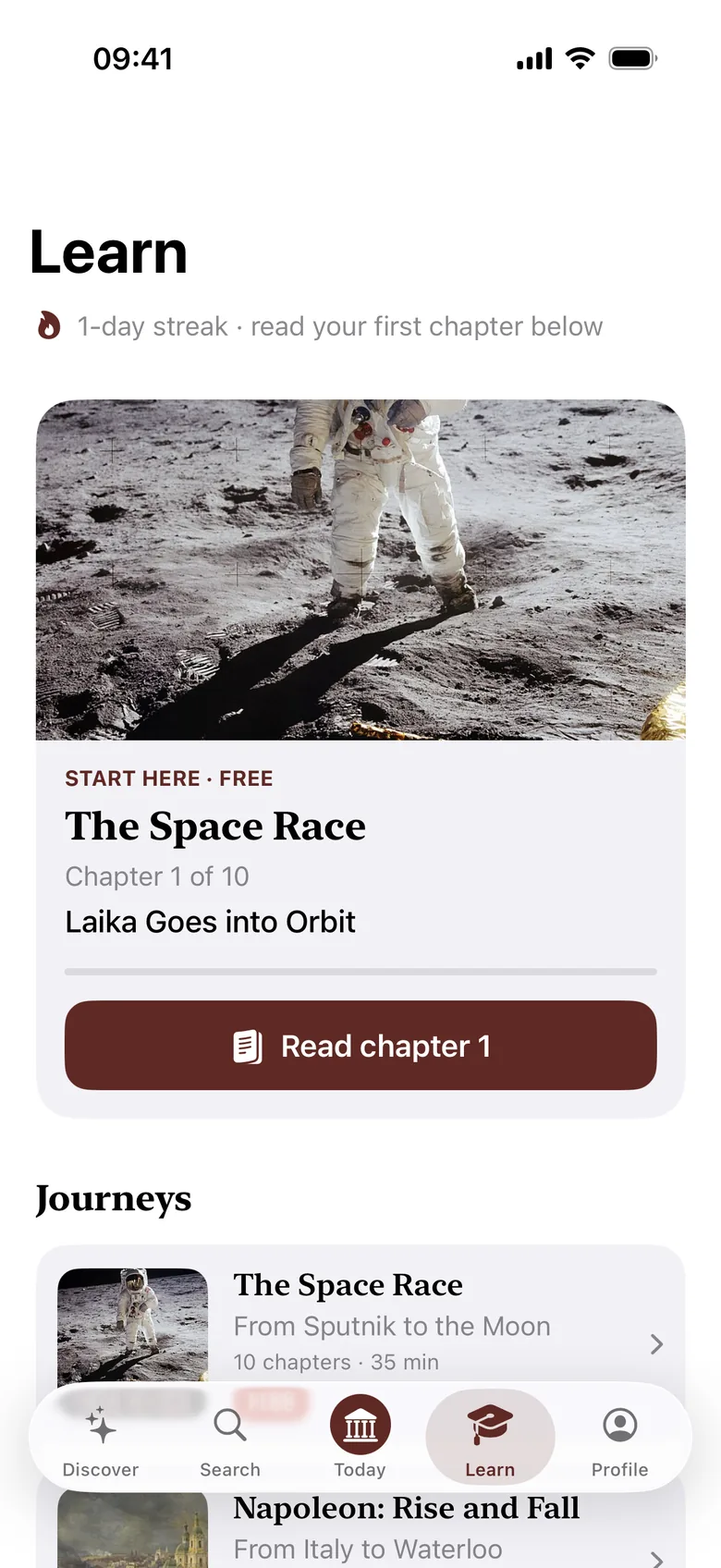
Learn — journeys, chapter by chapter
Step by step
One tap to today. One more to learn.
Path 01
First open
From install to the first event. Onboarding is four short steps: three topics, a birthday, a daily reminder and “You’re all set”. Then the paywall, with a clear way past it.
4 onboarding stepsBirthday optional“Maybe Later” on the paywall
-
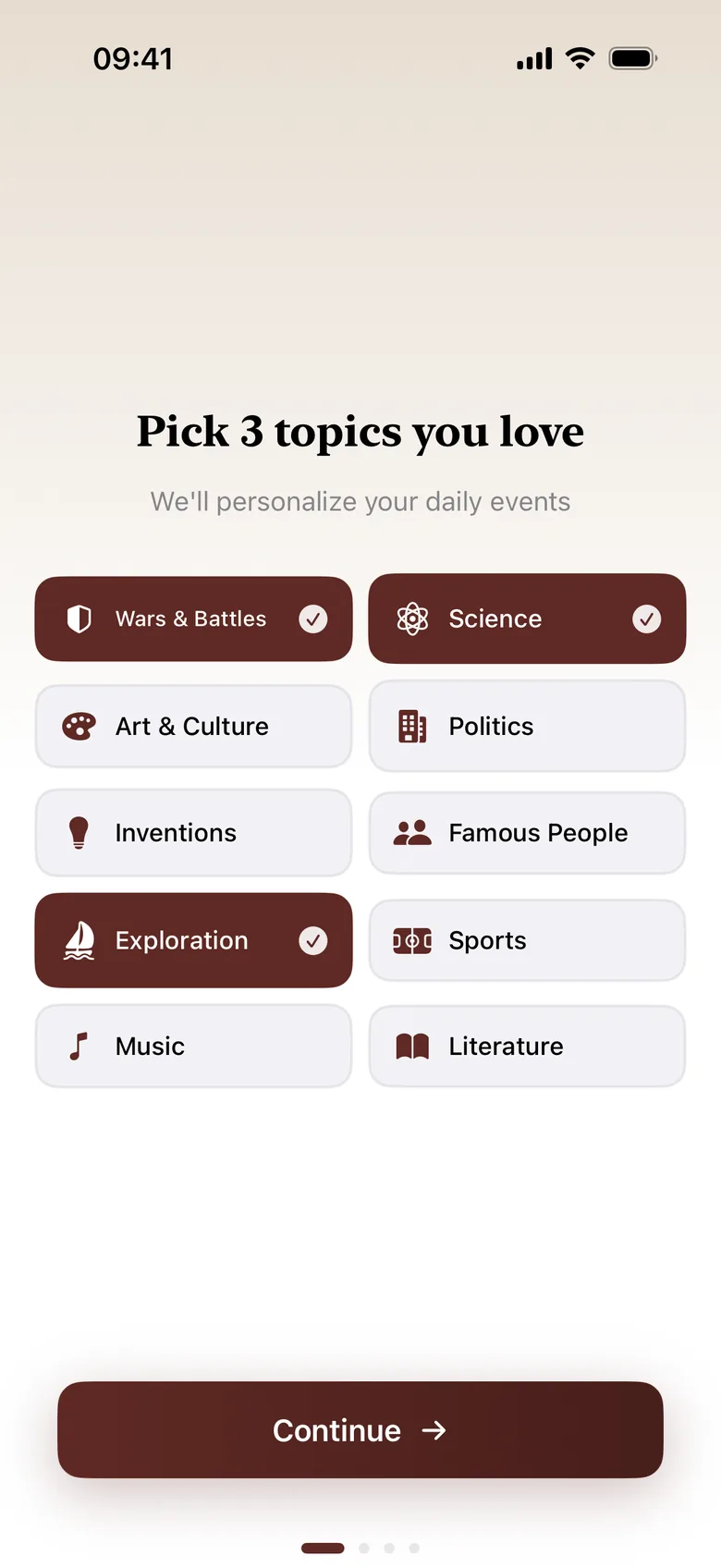
Step 1: Topics
Pick three topics you love. The daily events follow them.
-
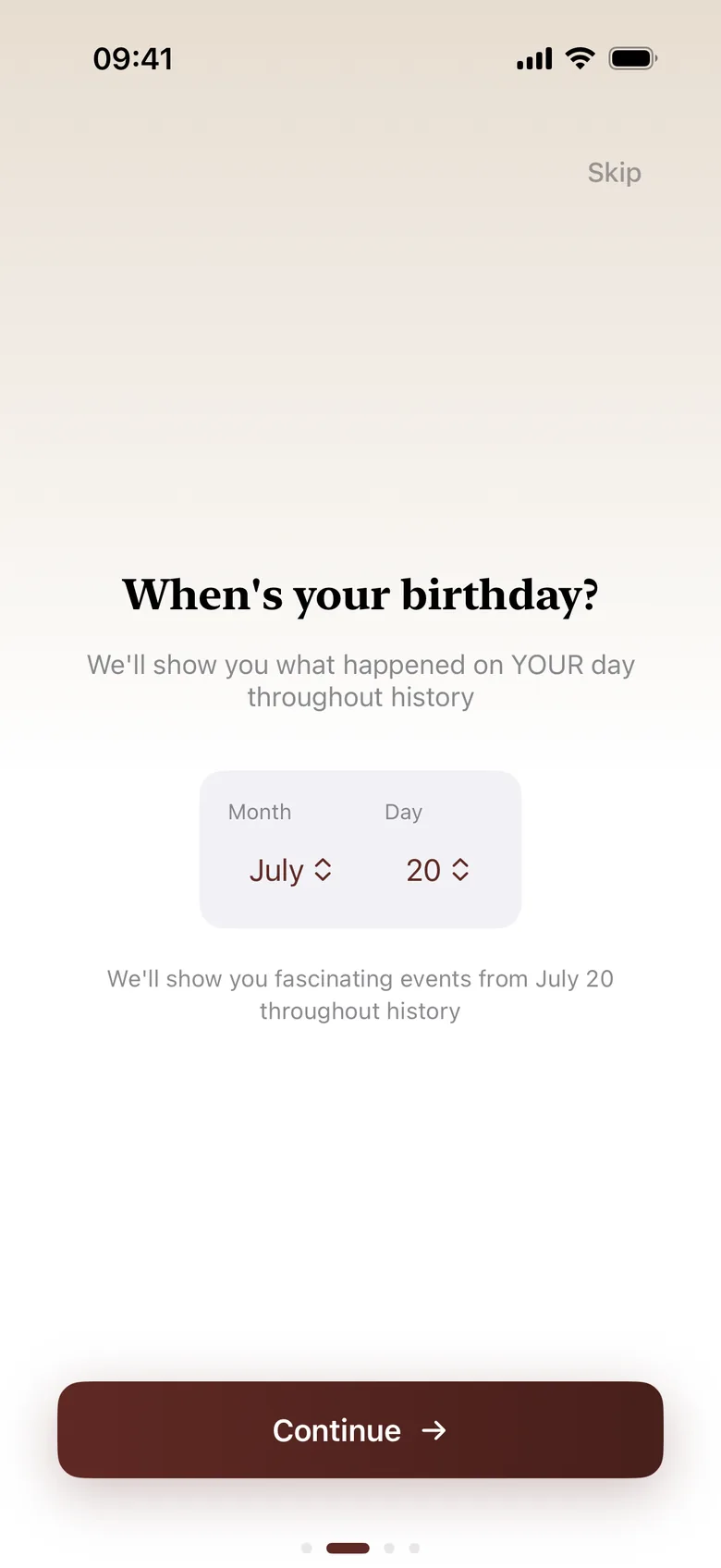
Step 2: Birthday
Month and day, nothing more: it unlocks what happened on your day. Skip sits in the corner.
-
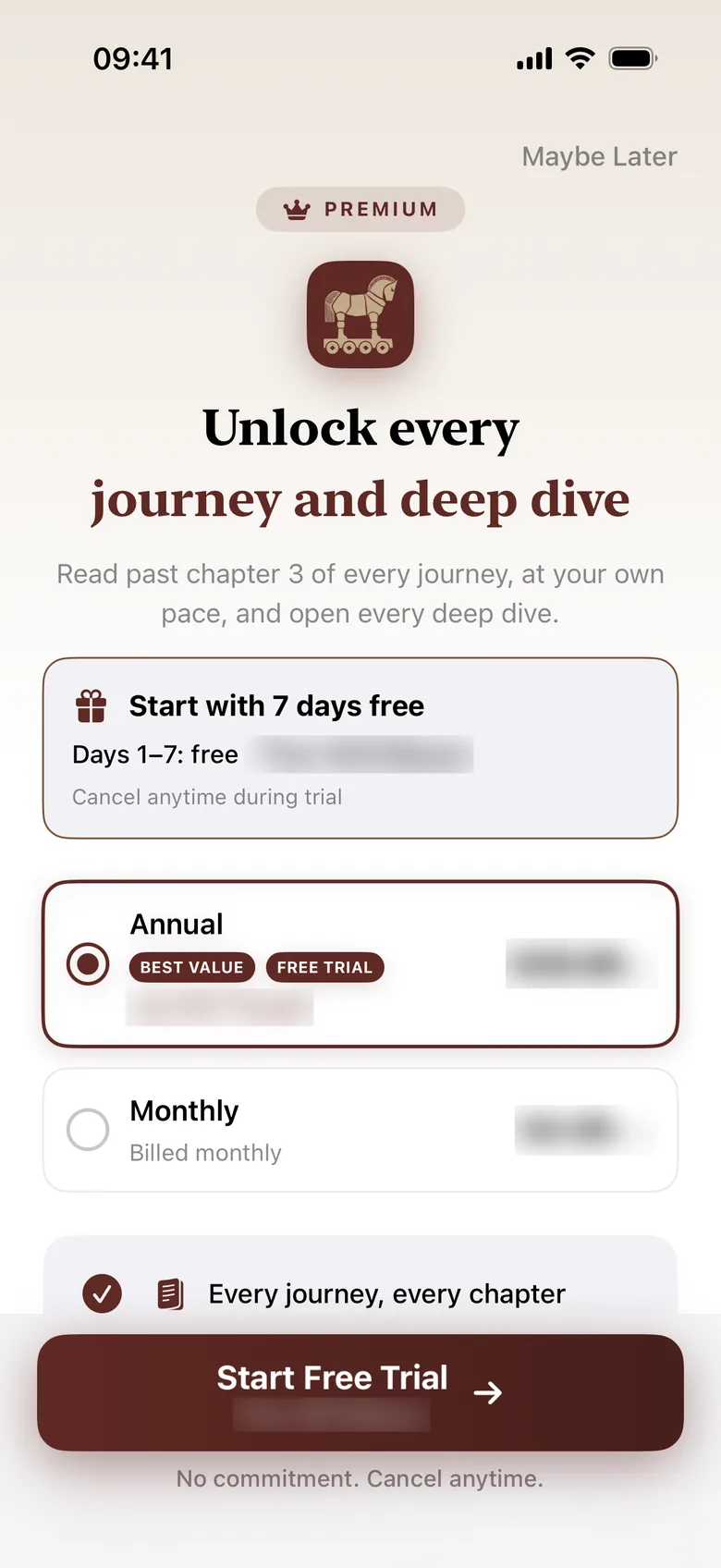
Step 3: Premium
A seven-day free trial on the annual plan. “Maybe Later” sits at the top, in plain sight.
-
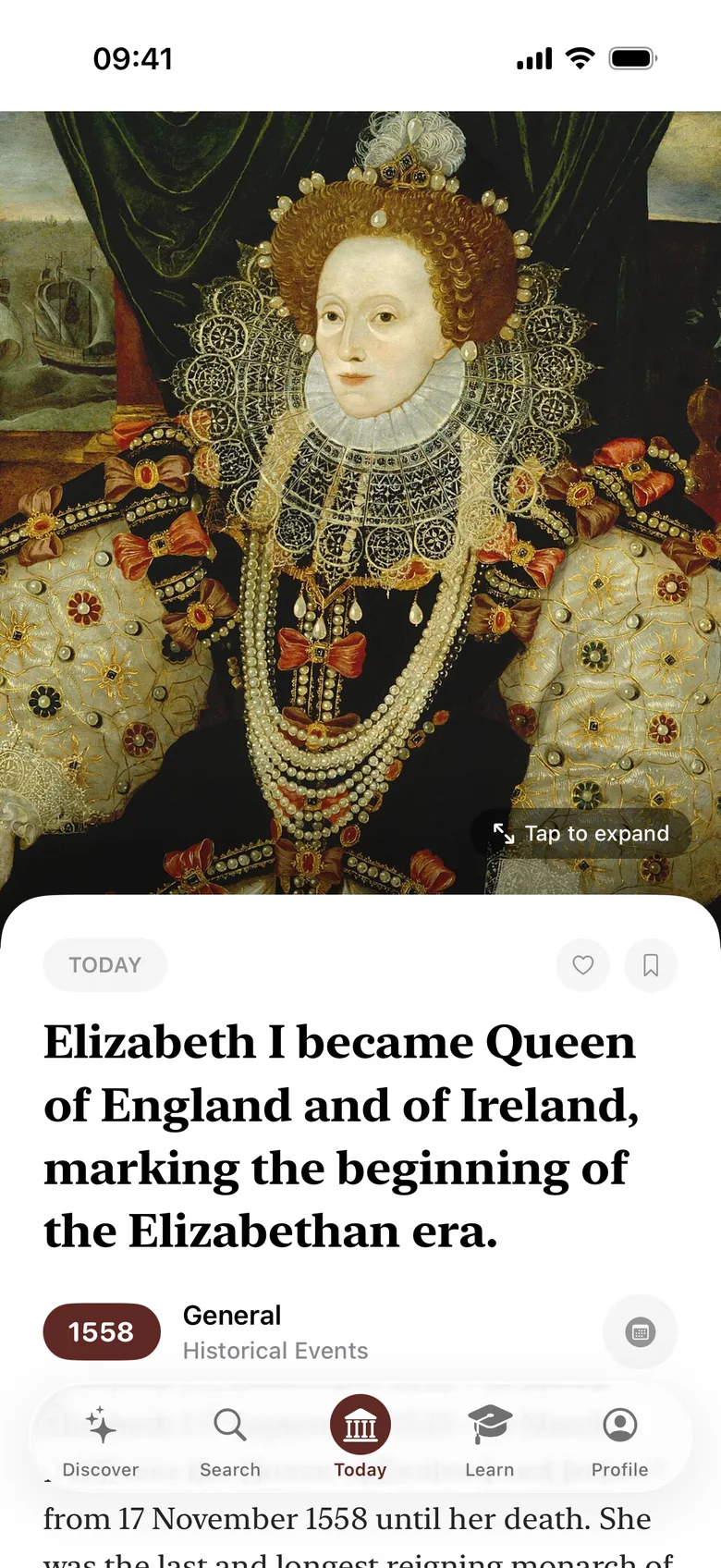
Step 4: Today
Straight into today’s event: the photo first, then the headline, with like and bookmark at hand.
Path 02
Learn
From a category to a chapter. Events are free to read. Journeys tell one story in short chapters: the starter journey is free, and Premium reads past chapter 3 of the rest.
Free to readStarter journey: free4 screens
-
Step 1: Search
Categories, themes and trending. Each category is an engraved illustration with its event count.
-
Step 2: Event
The year in a red badge, the category beside it and the period below, then the headline. Like it or bookmark it.
-
Step 3: Learn
The next chapter up top, the streak above it. Every journey below, with its chapter count and reading time.
-
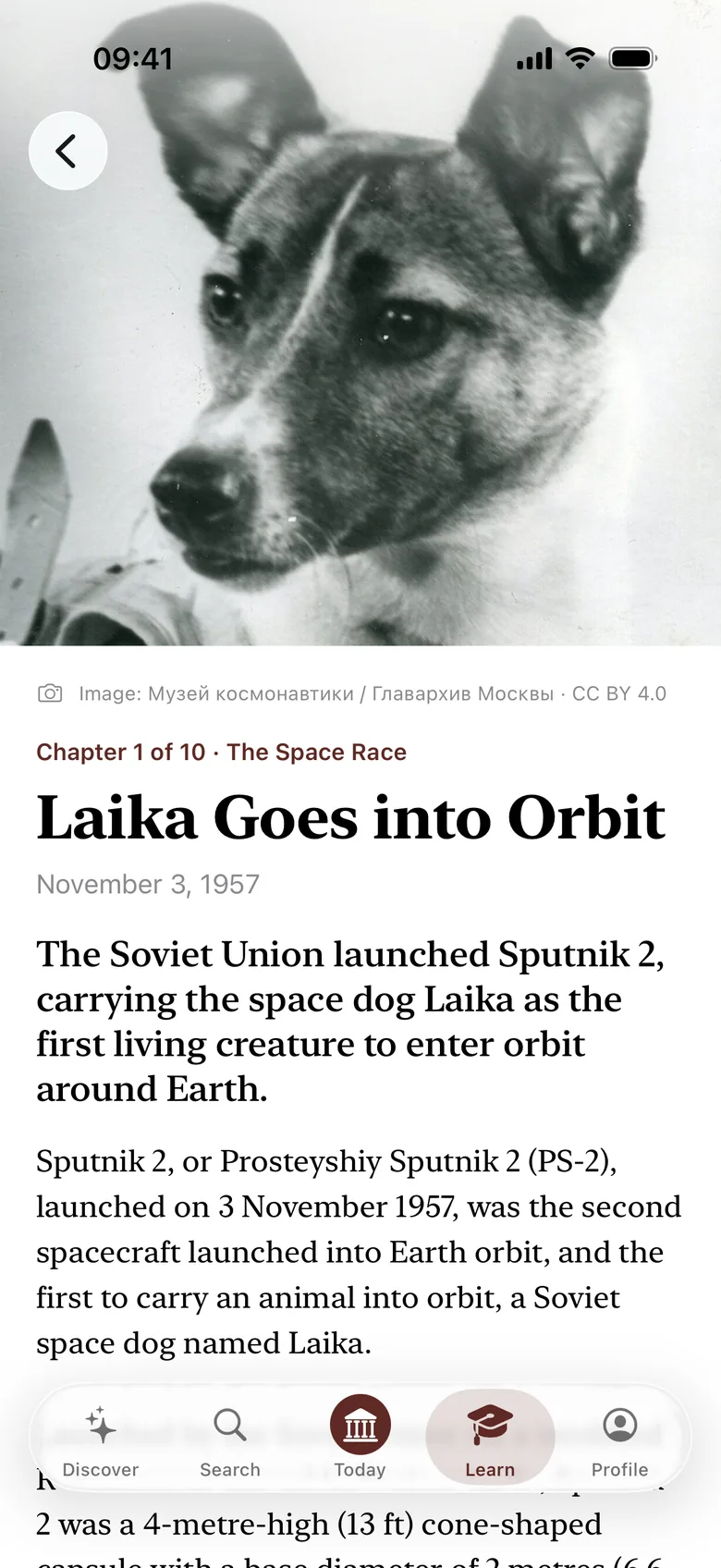
Step 4: Chapter
The archive photo with its credit, then the date and the story, set like a book.
Widgets
Off the app. On the Home Screen.
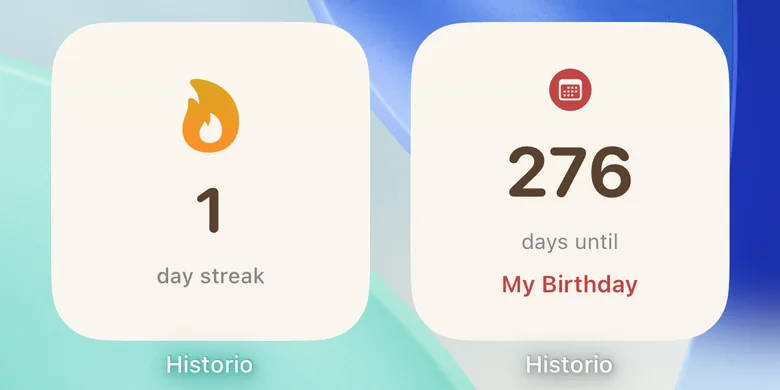
Three widgets, in Home Screen and Lock Screen sizes. They put today’s history on the phone without opening the app.
-
On This Day
Today’s date, the year and the event, on the Home Screen.
-
Streak
Your learning streak, at a glance.
-
Countdown
Days until a date that matters to you, like your birthday.
The system
Reads like a book. Works like an iPhone app.
-
Serif for the story
Headlines in a serif, like a printed page. Buttons, labels and numbers in SF, Apple’s system font.
-
Oxblood, brown and sand
Oxblood #5F2924 and dark brown #352014, with sand and bronze. Oxblood marks the button, the choice and the tab you’re on.
-
Engraved categories
Every category has its own engraved illustration on parchment, with its event count in the corner.